AI in Action
Core Flow Tools' shared AI Companion panel lets any application expose a small, curated, human-reviewed API instead of raw scene access — a request comes in as natural language, the model proposes Python against that curated surface, and nothing runs until a person reads it and clicks Run (see AI Companion and ClipsAPI for the full architecture). This page is a running log of real requests captured this way, across whichever application they came from — not scripted demos, and not a one-time gallery. New cases get added here as they're recorded.
 AnimHub
Prompt
Insert a 100-frame AnimHub clip at frame 221 named “Navigation_Offset_Test”. Offset all subsequent animation clips by 100 frames, and if objects are selected, offset their keyframes by the same amount.
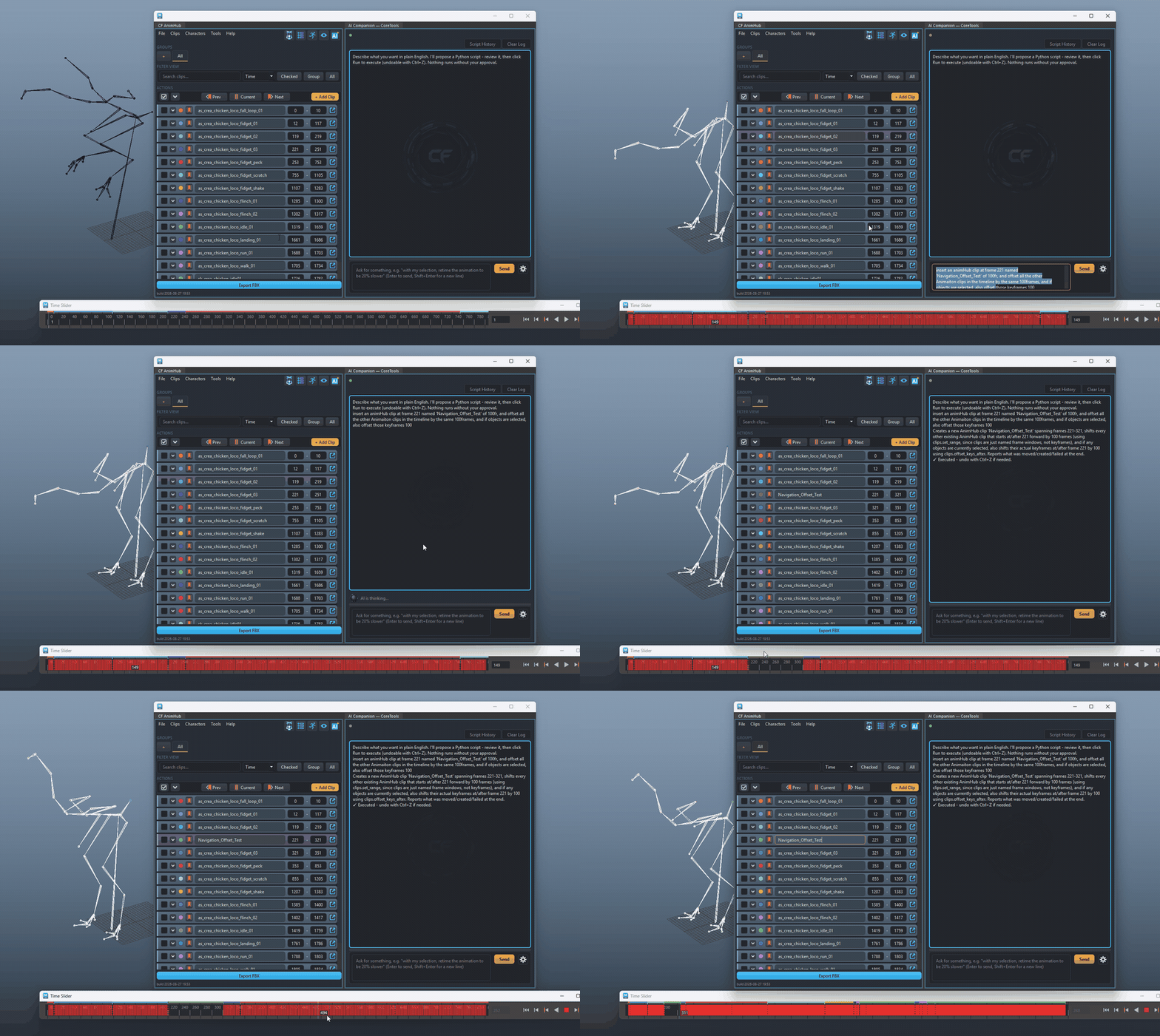
One request, three coordinated edits: a new
clip created at an exact frame (clips.create()), every
clip starting after it pushed 100 frames later to make room
(clips.list() + clips.set_range() per
clip), and the selected object's own keyframes shifted by the same
amount (clips.offset_keys_after(), documented as
“THE way to make room for a newly-inserted clip in the middle
of an existing timeline” — a dedicated curated call
rather than a hand-written per-key loop, for exactly this
scenario). Full reference in ClipsAPI.
AnimHub
Prompt
I’ve many animation clips in Time Editor, offset them so they don’t overlap, leaving a 2 frame gap between the clips, then sync the Time Editor to AnimHub, replacing any takes in AnimHub, and baking the keys back to the scene.
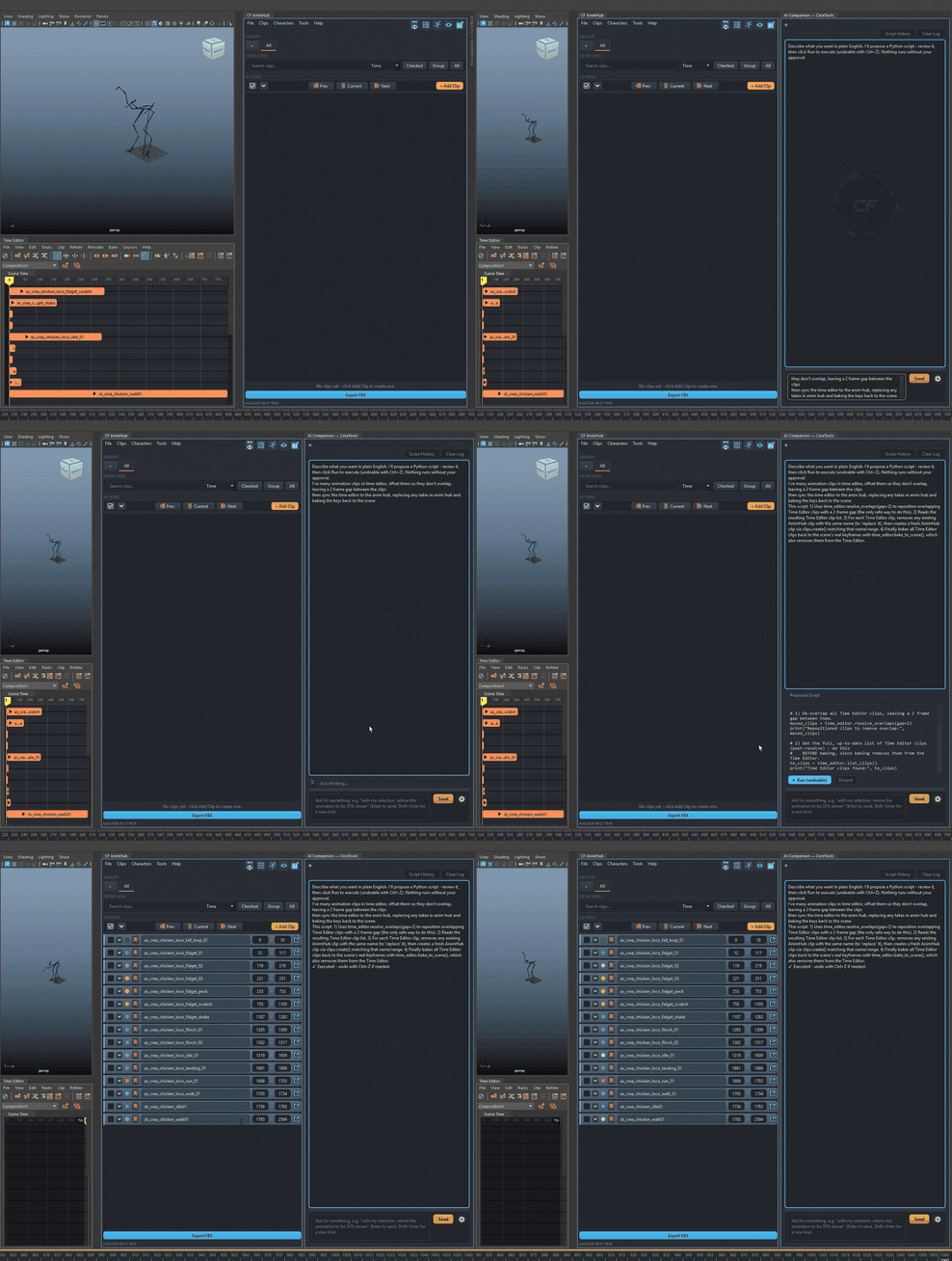
A request that spans two different systems
in one pass. Time Editor's own clips aren’t part of
ClipsAPI's curated surface at all
(they're a separate native Maya data structure from AnimHub's own
CF clips), so the model reads and repositions them directly
against Maya's Time Editor commands to compute the non-overlapping,
2-frame-gapped layout - exactly the kind of request the safety
model is built for: no curated method covers it, so it falls back
to precise, reviewable native calls instead of inventing one. The
second half reuses real, existing CoreTools code rather than
hand-rolled logic: the same time_editor_sync.py read
(list_time_editor_clips()) and bake
(bake_clips_to_scene()) functions that back AnimHub's
own human-facing Tools > TimeEditor > Sync Clips to
Timeline Editor... dialog, driven here without the modal
dialog in the way since the whole point is a script the AI can
propose and a human can review in one read, not a UI it has to
click through.
 Batch
Batch
Prompt
Take the file in queue, if it’s an image file, use FFMPEG to compress/re-scale until the file is less than 25MB save in the same folder and Name the file with a “Version Number” check file size after generating, if bigger than 25MG do the process again. Don’t run more than 20 times.
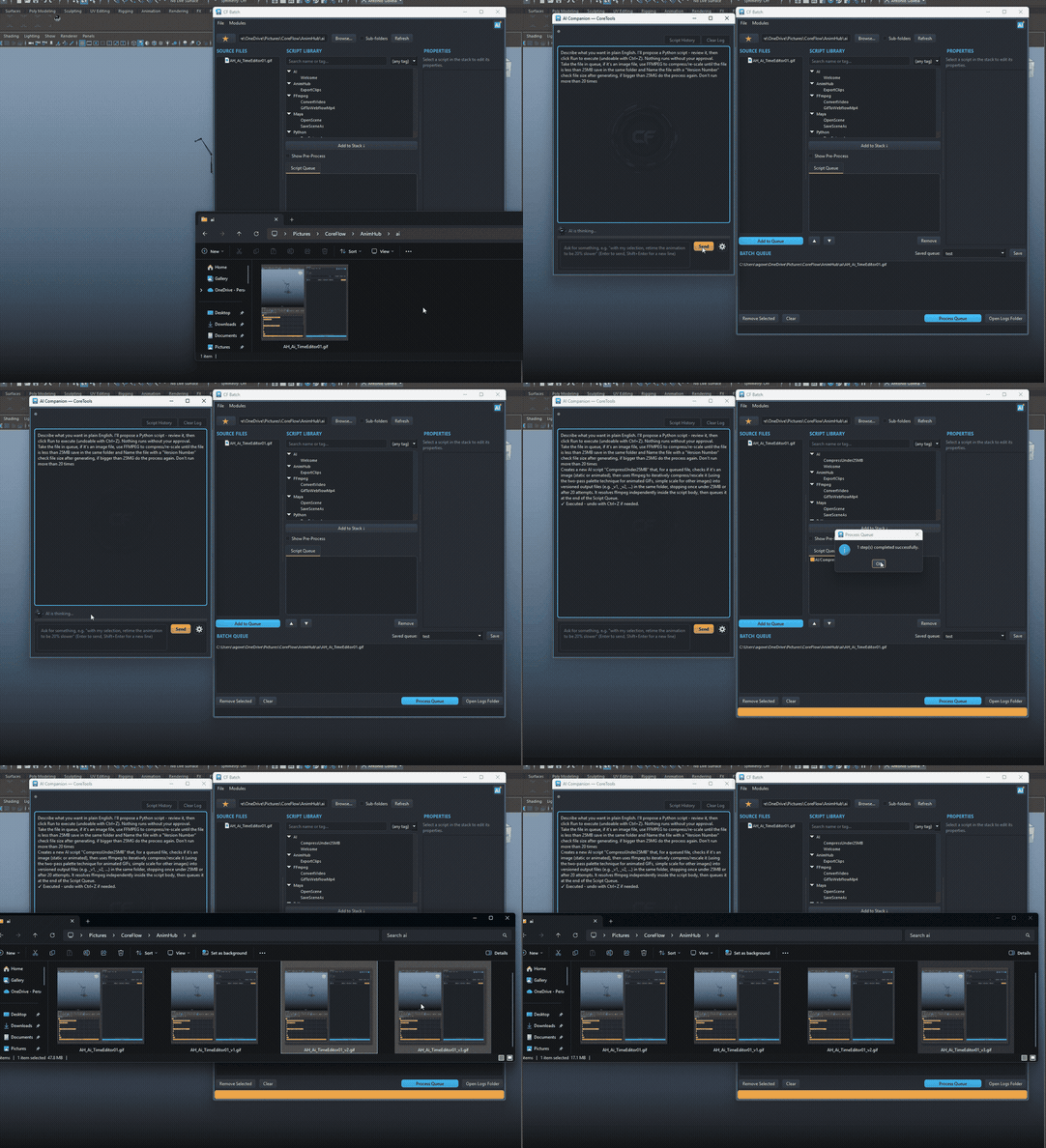
Written to solve a real, immediate need
while building this documentation: the GIFs used throughout this
site (including the two above) start out too large to embed
comfortably, and needed compressing without hand-running ffmpeg
flags each time. Describing the constraint in plain English and
letting CF Batch's own AI Companion turn it into a queued,
reusable script turned a one-off manual chore into an automated
one. The model calls batch.create_script() +
batch.queue_script() to register a real library
entry (not a one-shot inline script), which itself resolves
ffmpeg through ffmpeg_tool.resolve_ffmpeg() rather
than assuming a bare "ffmpeg" is on PATH, and -
because the target here is an animated GIF specifically - uses
the same two-pass palettegen/paletteuse
technique documented in Batch's
own AI Companion integration rather than a naive scale-only
re-encode, which bands badly on a GIF's limited palette. Each
attempt re-checks the resulting file size and tries again at a
smaller scale, up to the requested cap, stopping the moment it's
under 25MB.